
Two-factor authentication (2FA) provides additional protection for your ownvia account. When signing in, you will receive a six-digit verification code by email.
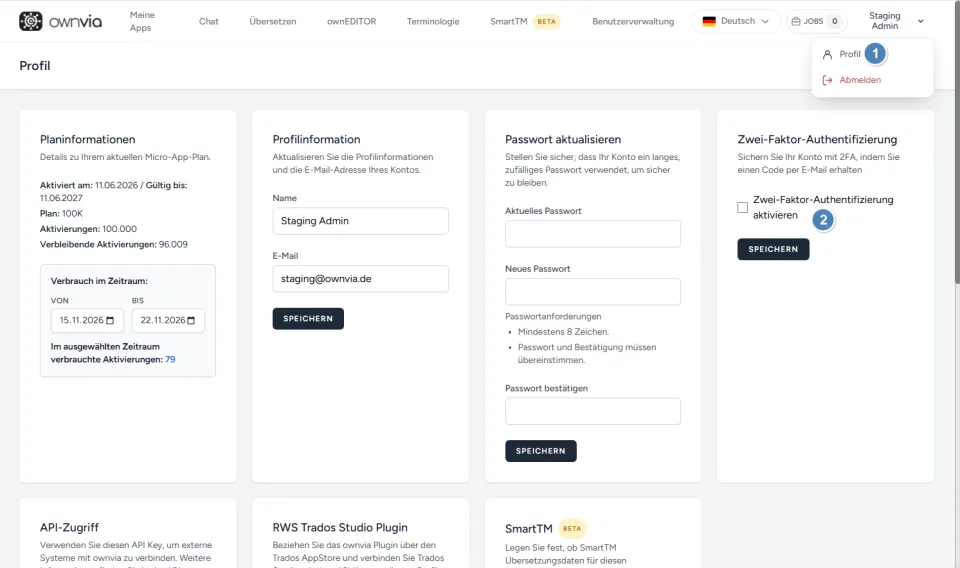
Click your username in the top right and select Profile.
Look for the Two-factor authentication section.
Enable the Enable two-factor authentication option.
Click Save.
The next time you sign in, you will receive a verification code at your registered email address. Enter it to complete the sign-in process.
Note: The confirmation code is valid for ten minutes. If needed, you can request a new code via Resend code.