What do I see after logging in to ownvia?
After logging in, you are taken by default to the My Apps section, where your available micro-apps are displayed.
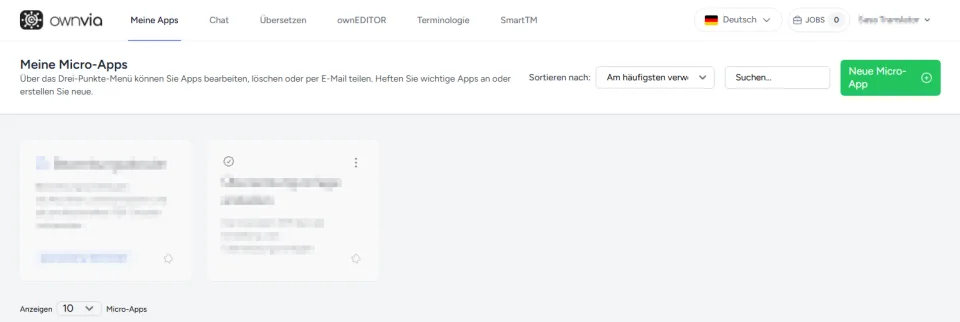
You can access the most important functions via the top navigation bar:
My Apps: Access and manage available micro-apps.
Chat: Communicate with AI assistants.
Translate: Translate texts and documents.
ownEDITOR: Edit and review translations.
Terminology: Search for technical terms and manage glossaries.
SmartTM: Access stored translation segments, provided the function is enabled.
Language: Switch between German and English.
Jobs: View ongoing and completed jobs.
User menu: Open profile settings or log out.
Note: The available functions and the home page may vary depending on your user role and the features enabled for your organisation.