
In ownvia, you can create your own glossaries to centrally manage technical terms and their translations.
Use the navigation to open Terminology → Glossaries.
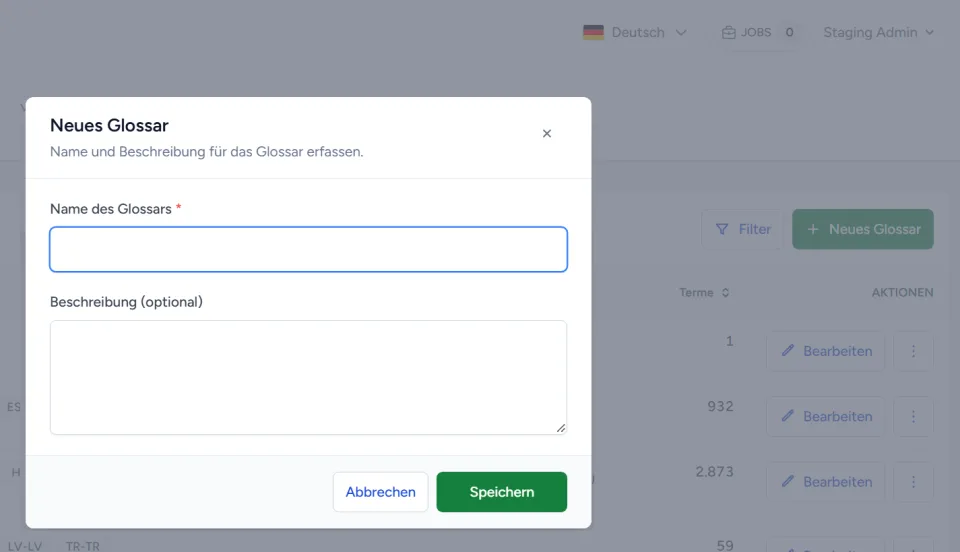
Click + New glossary.
Enter a unique Glossary name.
Add a Description if required.
Click Save.
The new glossary will then be available in your glossary overview.
Note: Via Glossary settings, you can then add the desired languages and define a default language. Technical terms can subsequently be entered manually or imported.