ownvia takes company-specific terminology into account for AI-supported text and document translations. To do this, a glossary is linked to a translation template. Relevant technical terms are identified and provided to the AI as translation guidelines.
Assign a glossary to a translation template
In ownvia, open the Translate section.
Select the desired translation template.
Open the Template settings using the settings icon.
Under Terminology and translation → Glossary, select the desired glossary.
Click Save.
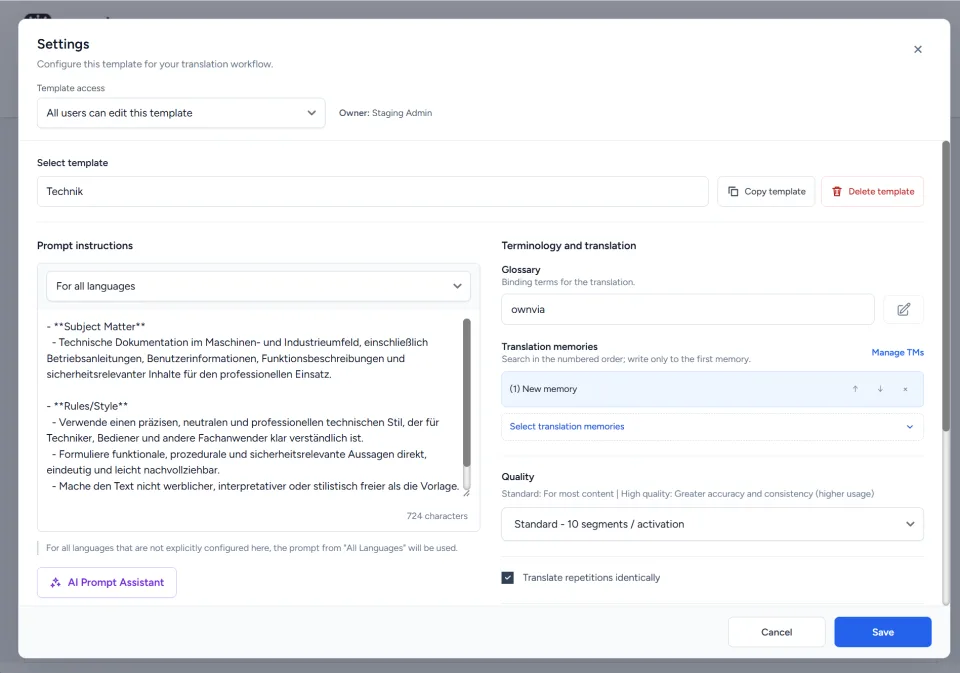
One glossary can be assigned to each translation template. The same glossary can be used in multiple templates.
Use glossary during translations
Start the text or document translation using the appropriately configured template.
ownvia searches the source text for suitable specialist terms and provides the stored target terms to the AI.
Prerequisite: The glossary must contain both the source and target term for the language pair being used.
The glossary terms serve as bindingly formulated translation specifications for the AI. As the translation is performed by an AI model, correct usage cannot be guaranteed in every case.
Check terminology in ownEDITOR
For document translations, recognised specialist terms and possible terminology deviations can be displayed in the ownEDITOR.
This enables you to review translations specifically and correct them if necessary.
Important information:
Glossary entries that have not yet been approved by a specialist can also be taken into account during translations. Therefore, check the quality of your terminology.
Changes to a glossary affect future translations. Existing translations are not updated automatically.
Corrections in ownEDITOR are not automatically written back to the glossary.
Tip: Use separate glossaries and translation templates for different subject areas. This allows you to tailor the terminology specifically to the respective translation assignment.