
Export glossary as an Excel or CSV file
Open Terminology → Glossaries.
Select the desired glossary.
If needed, use the search or filters to select the desired terminology entries.
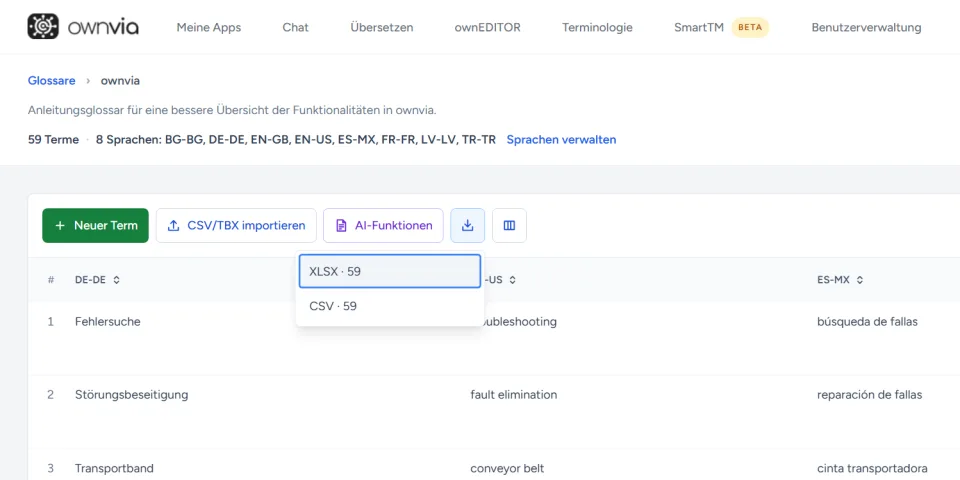
Click the Download icon above the glossary table.
Select XLSX (Excel) or CSV.
The file will be downloaded directly.
Which entries are exported?
The export includes all entries that match your current search and filter selection – including entries across multiple table pages.
Without an active search or filter, all glossary entries with existing terms are exported.
What information does the file contain?
The export includes all glossary languages, even if individual language columns are hidden in the table.
In addition, categories, origin, review status and editing information are exported. Comments and example sentences are exported if the corresponding columns are displayed.
Note: The export does not modify any glossary entries. You can use the downloaded file independently of ownvia.