
Manage languages in the glossary
Open Terminology → Glossaries and select the desired glossary.
Click Glossary settings.
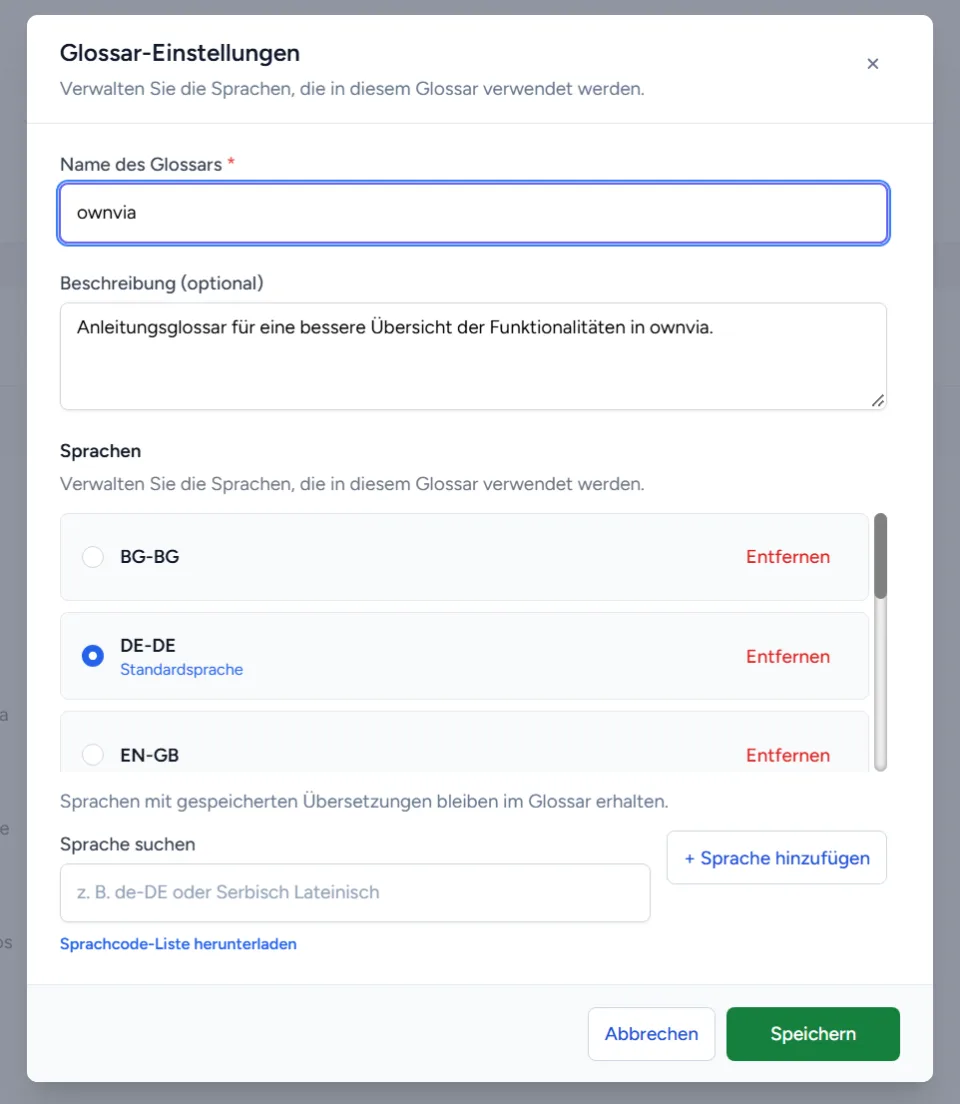
In the Languages section, you can see all languages assigned to the glossary.
Use Search for language and Add language to add more languages.
If required, set a different default language.
Click Save.
What is the significance of the default language?
The default language serves ownvia as the preferred reference for certain terminology functions, such as the automatic addition of missing categories.
However, it does not automatically determine the source or target language of a translation. This depends on the respective translation order.
Can I remove languages from a glossary?
Languages without stored terms can be removed from the glossary's language list via Remove.
Important: If technical terms or translations already exist in a language, it will be retained. ownvia automatically adds it again when saving to ensure that no existing terms are lost.
If you only want to hide a language in the glossary table, use the Columns function. There, you can show language columns again at any time.
How do I add translations in additional languages?
Open an existing terminology entry via Edit and add the terms in the desired languages.
Alternatively, you can automatically add missing translations via AI functions → Translate missing terms.