
1. Create a new review
Open Terminology → Sent reviews.
Click + Send new review.
Select the desired glossary.
Enter the email address of the person who should review the terminology.
Set the reference language and one or more review languages.
Select a review period and click Continue.
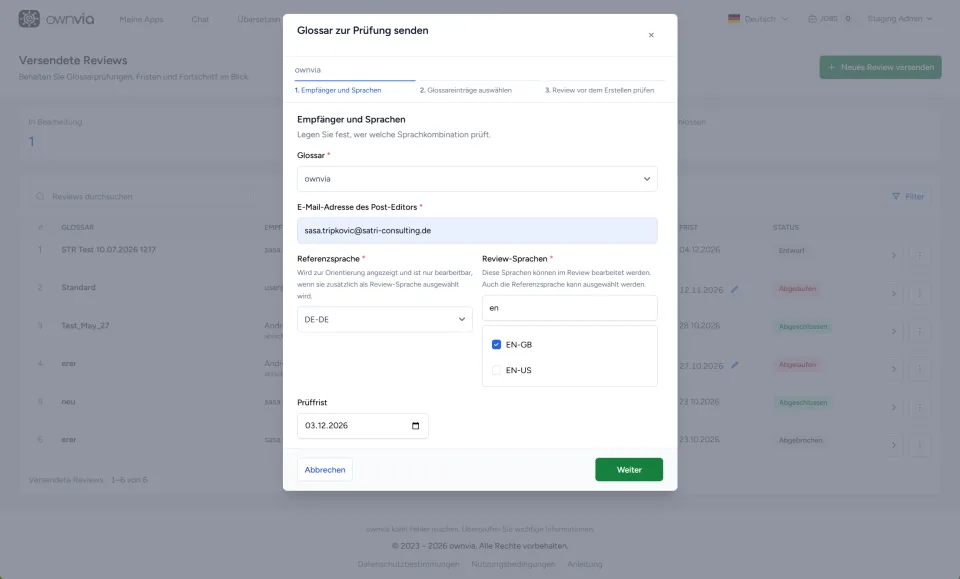
Important: The reference language is provided for orientation. It can only be edited if it is additionally selected as a review language.
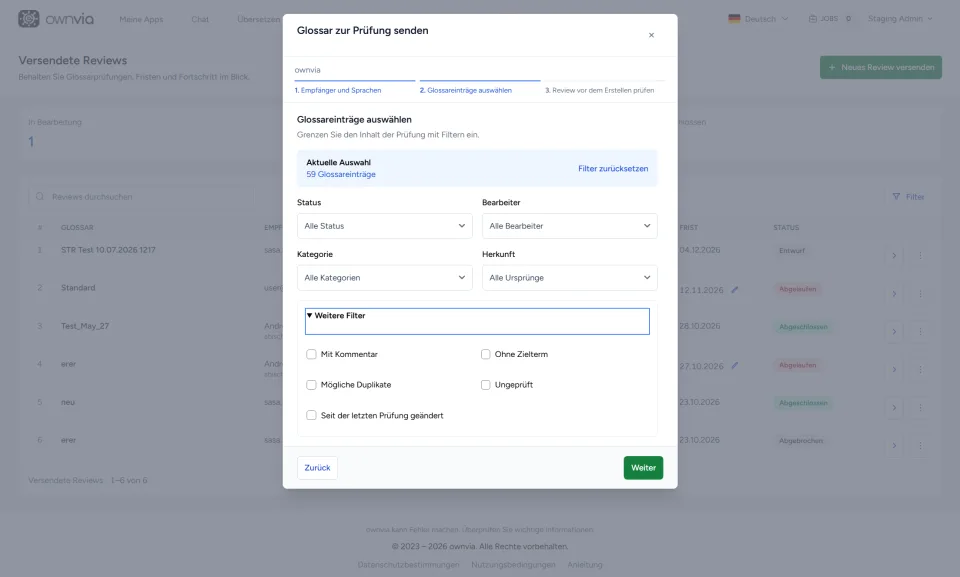
2. Select terminology entries for review
You can submit the entire glossary or specifically selected terminology entries for review.
The following filters are available, for example:
Status and editor
Category and origin
Entries with comments or missing target terms
Potential duplicates and unchecked entries
Entries changed since the last review
The number of selected glossary entries is displayed directly.
Then click Continue.
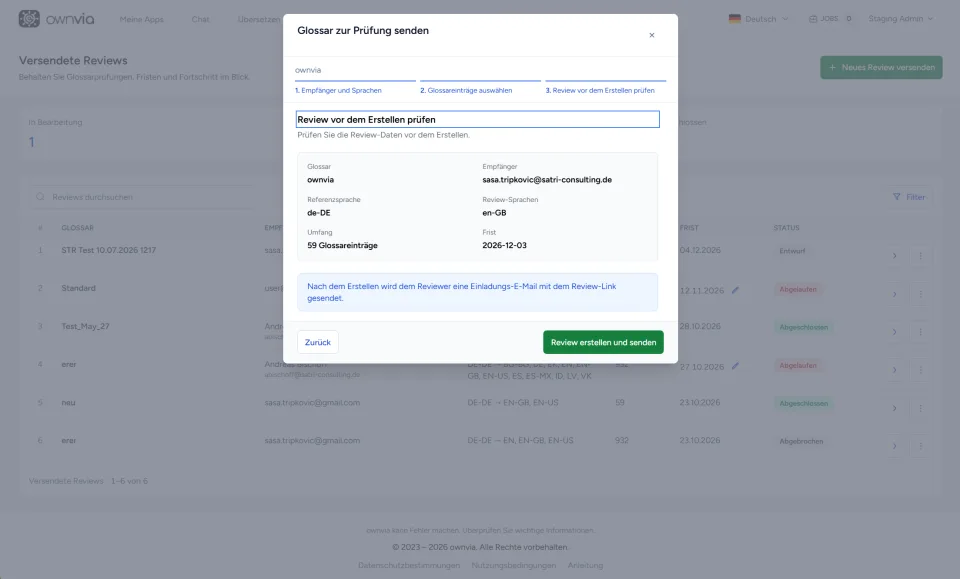
3. Check and send the review
In the summary, check the glossary, recipient, languages, number of entries and review deadline.
Click Create and send review.
4. What happens after sending?
The recipient automatically receives an email with a personal review link.
Via Open review, they can check, edit and comment on the selected terminology entries directly in the browser.
An ownvia user account is not required for this.
Important: The personal review link provides access to the terminology review and should not be shared with other people.
5. Track progress
Under Terminology → Sent reviews, you can keep track of all review requests.
The overview shows, among other things:
Recipients and reviewed languages
Number of glossary entries and review deadline
Processing status, such as Draft, In progress, Expired or Completed
You can search and filter the reviews and open them via the respective row.
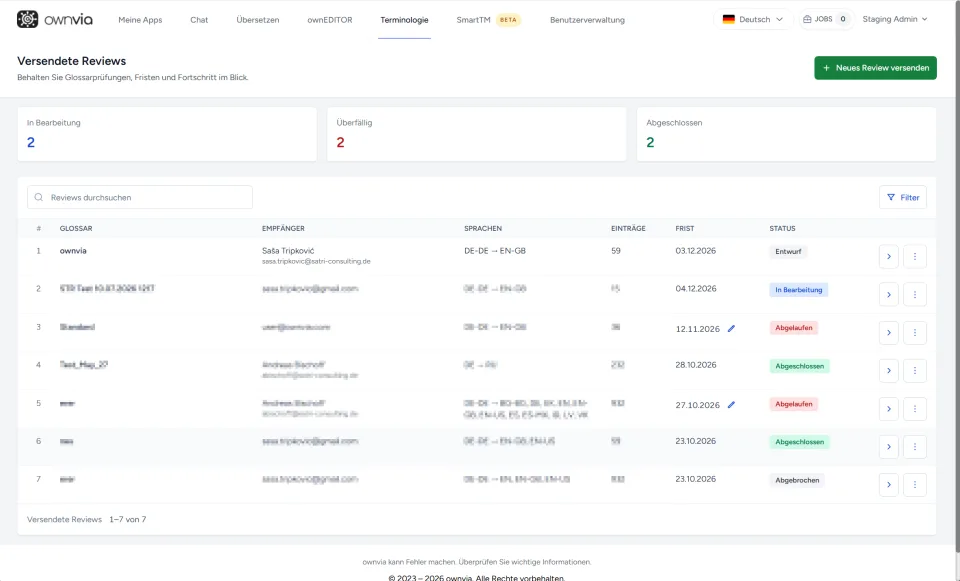
Note: The status “Draft” means that the recipient has not yet completed the terminology review. The invitation has already been sent.