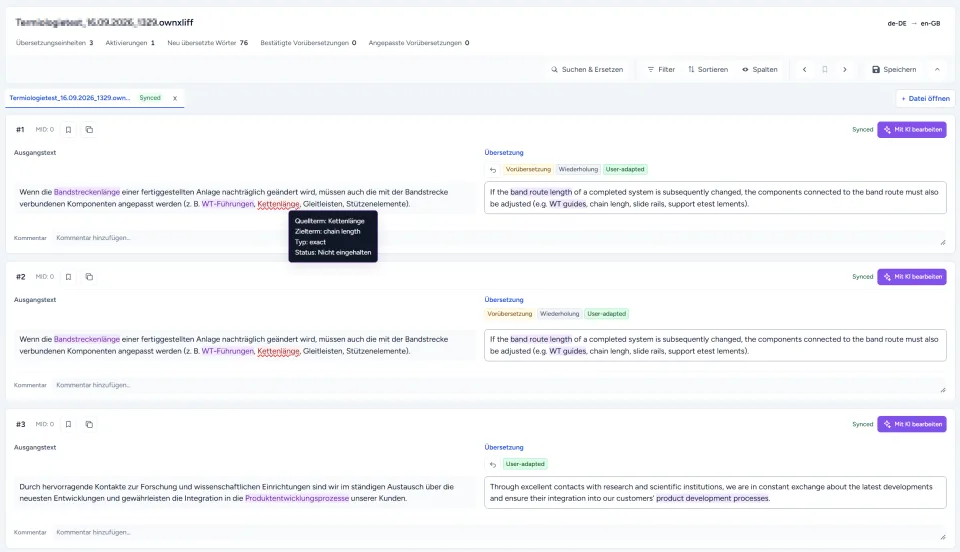
Identify terminology discrepancies
In ownEDITOR, relevant technical terms in the source text are highlighted in colour. This allows you to see whether the corresponding glossary translation has been used in the target text.
Purple: The stored term or a known variant was found in the target text.
Red: The expected term was not recognised in the target text. The term should be checked.
When you hover over a highlighted term with the mouse, ownvia displays additional information, such as the intended translation and the review status.
Check terminology with the AI segment assistant
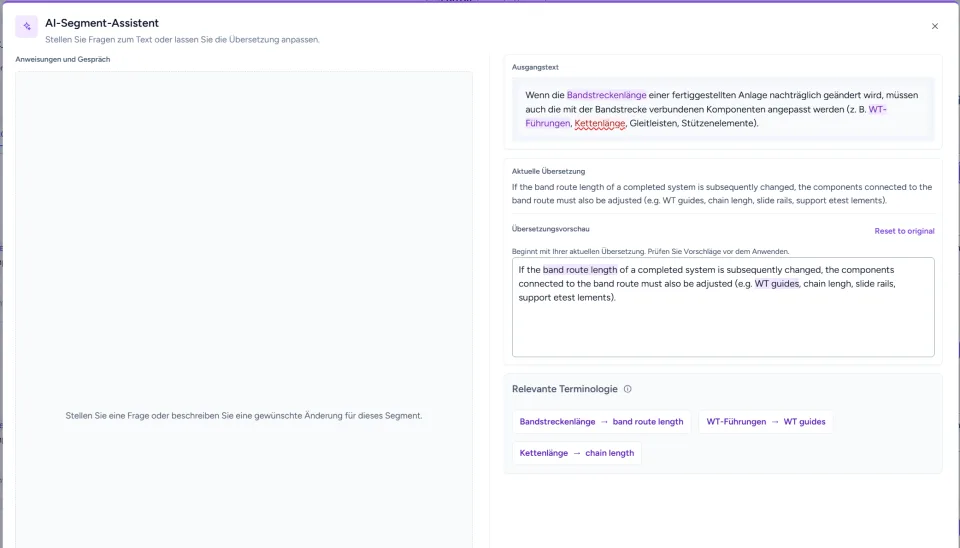
Open the relevant segment via Edit with AI.
In the AI Segment Assistant, you will find the recognised technical terms and their stored translations under Relevant terminology.
Compare these with the current target text.
Correct the translation directly if necessary, or use the AI assistant to suggest an adjustment.
Review the suggestion before applying it.
Are terminology changes detected immediately?
Yes. When you edit a translation in the segment, the colour markings are updated based on the current target text.
Important: The markings provide support during quality assurance. Grammatical variants or other permissible spellings may appear as deviations. Conversely, a purple marking does not automatically mean that the terminology has been used correctly from a technical perspective.
The final assessment is carried out by the post-editor.