
ownvia automatically identifies specialist terms from websites, PDF and TXT files, as well as Translation Memories in TMX format, using AI. The extracted terms are saved directly in a selected glossary.
Start term extraction
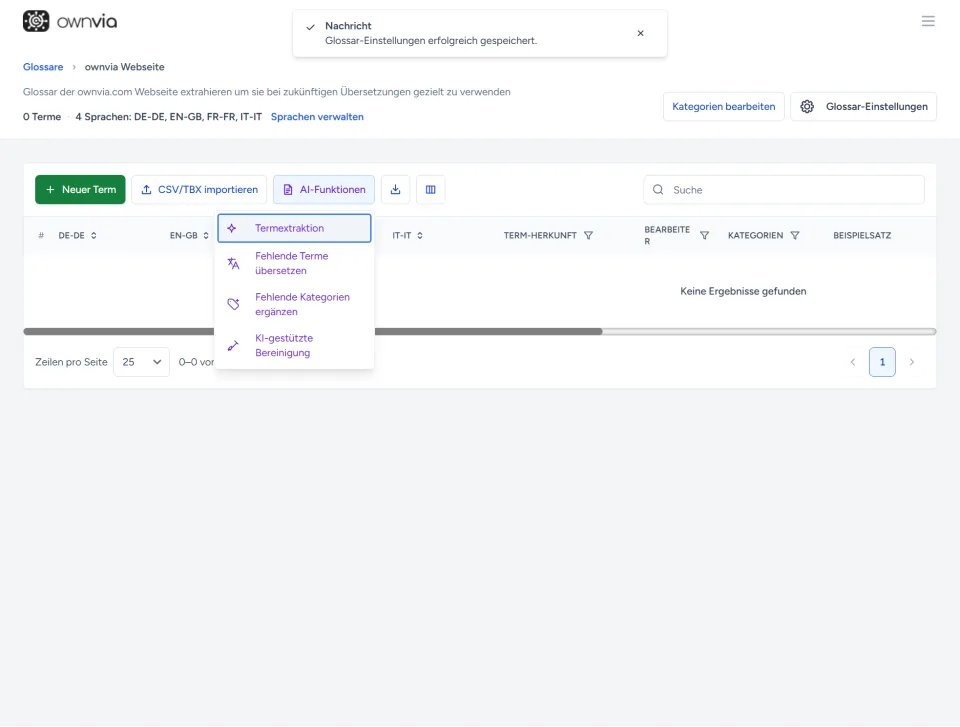
Open Terminology → Glossaries.
Create a new glossary or open an existing one.
Set the desired glossary languages.
Select AI features → Term extraction.
Define the source and number of specialist terms
Under Select glossary, select the desired target glossary.
Under Select source, choose File or Website.
Upload a PDF, TXT or ZIP file containing TMX files, or enter the URL of a website.
Under Number of new terms, enter the desired quantity between 1 and 1,000.
Click Start extraction.
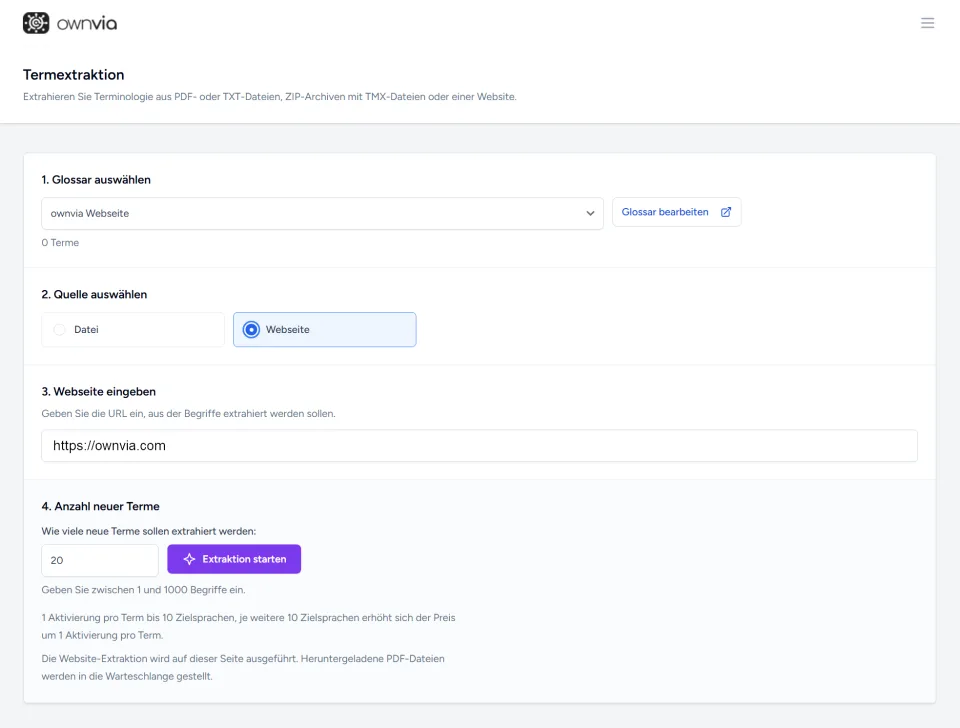
Note: The specified number is a target value. Depending on the content and existing terminology, fewer new entries may be created.
Review results
The recognised terms are transferred directly to the selected glossary.
Websites: New terms can additionally be translated into glossary languages already in use.
PDF/TXT files: New terms are initially stored in the detected source language.
TMX files: Detected translations can be adopted and missing language versions of existing entries can be added.
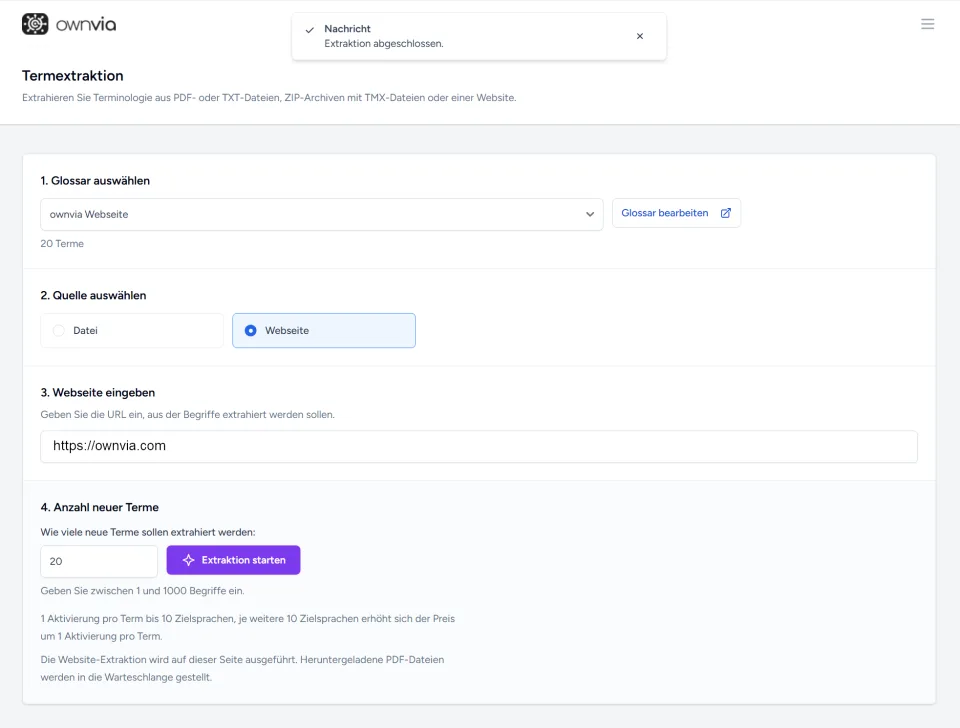
Existing terms remain unchanged.
Important: The extracted terms are available in the glossary without prior approval. Therefore, check the technical accuracy, translations and categories before using the glossary productively.
You can additionally track file and TMX extractions under Jobs.