
In ownvia, you can create terminology entries manually, maintain multilingual terms and store additional information such as example sentences, comments and categories.
Create a new terminology entry
Open Terminology → Glossaries.
Select the desired glossary.
Click + New term.
Select the desired language and enter the technical term.
If required, add further translations in the available languages.
Click Save.
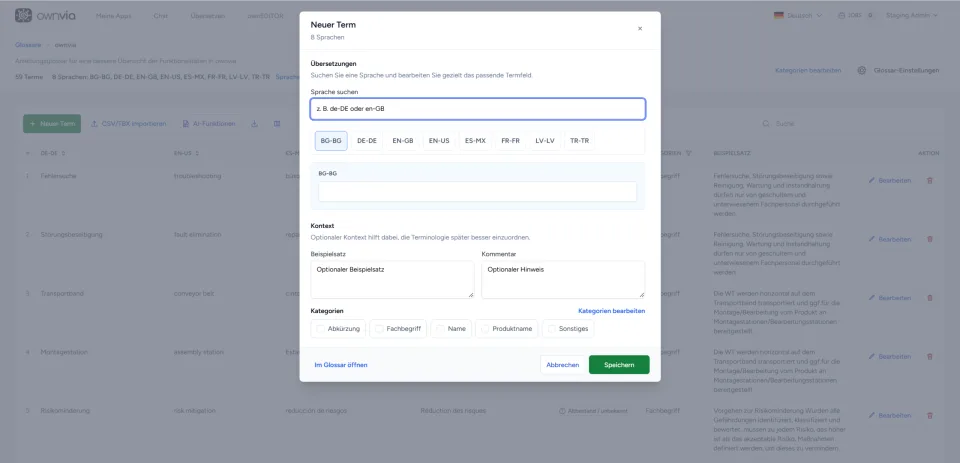
Add additional information
You can record additional information for each terminology entry:
Example sentence: Shows the technical term in a specific application context.
Comment: Contains additional notes on the meaning or use.
Categories: Allow assignment to categories such as technical term, product name or abbreviation.
A terminology entry can be assigned to multiple categories. Additional categories can be created and defined via Edit categories.
Edit existing terminology entries
Open the desired glossary.
Search for the corresponding technical term.
Click Edit in the entry's row.
Change the names, translations or additional information.
Click Save.
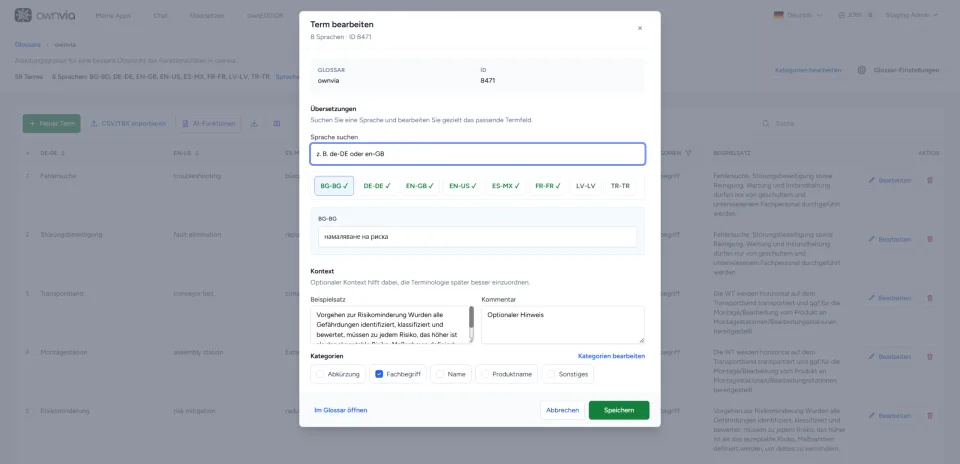
Delete terminology entries
Entries that are no longer needed can be deleted via the bin icon in the glossary overview.
Important: Deletion is permanent. Deleted terminology entries cannot be restored.
Tip: Maintain your terminology regularly and add relevant contextual information. This makes technical terms easier to understand and enables them to be used more consistently.