1. Open terminology review
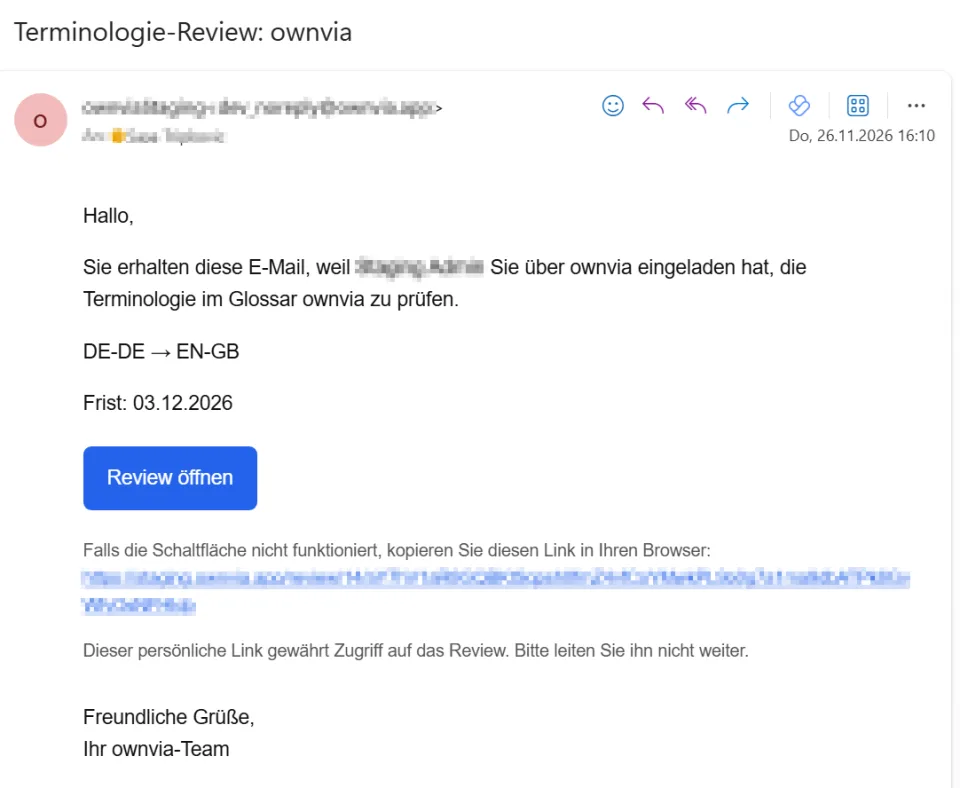
If you have been invited to review a glossary, you will receive an email with a personal review link.
Open the invitation email from ownvia.
Click Open review.
The terminology editor opens directly in your browser.
An ownvia user account is not required.
Important: Your personal review link provides access to the terminology review. Do not share it with anyone else.
2. Review and edit terminology entries
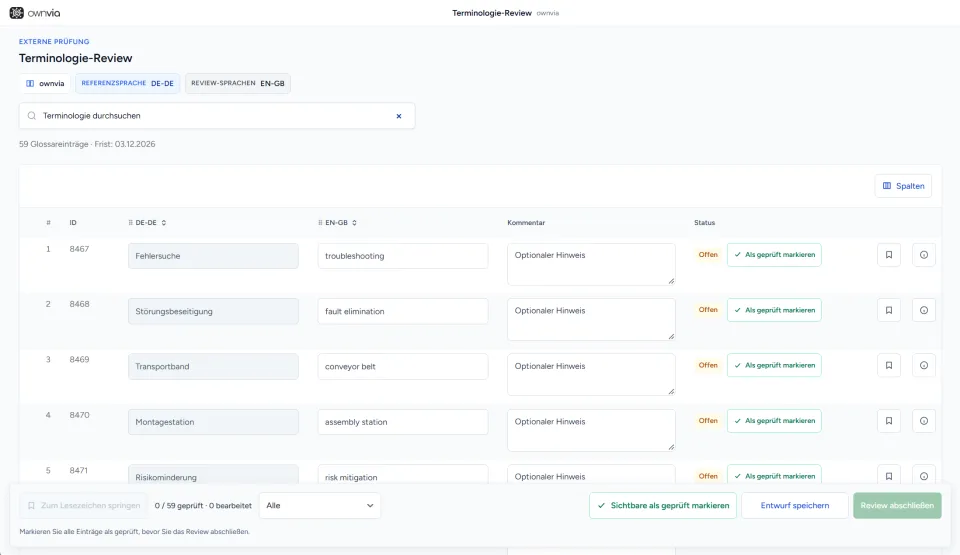
In the review editor, you can see the selected technical terms, their translations and the review deadline.
Reference language: Serves as a reference and can only be edited if it has also been selected as a review language.
Review languages: In these languages, you can check terms and correct them if necessary.
Comment: Here, you can add notes or edit existing comments.
Bookmarks: Use these to mark entries that you want to view again later.
Check the translations and change unsuitable terms directly in the respective input field.
3. Mark entries as reviewed
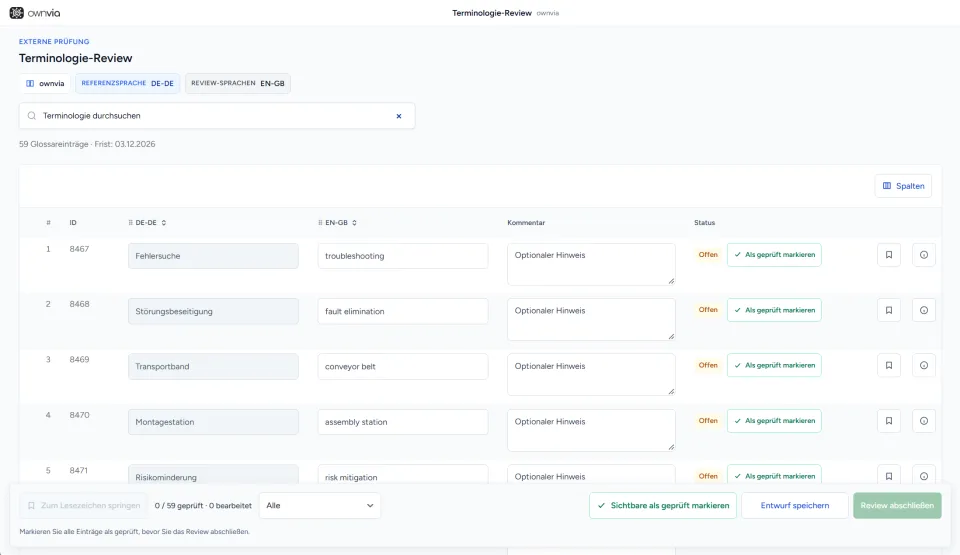
Once you have checked a terminology entry, click Mark as reviewed.
This also applies to entries that you have not changed.
With Mark visible as reviewed, you can confirm multiple displayed entries on the current page at the same time.
Important: If you edit an entry that has already been confirmed, you must mark it as reviewed again afterwards.
4. Save the editing progress
You can pause your review and continue it later.
Click Save draft and wait for the save confirmation.
ownvia also automatically saves your changes as a draft while you are editing. Manual saving is particularly recommended before leaving the editor.
Note: Your changes will not yet be transferred to the original glossary until the review has been completed.
5. Complete the terminology review
Once you have reviewed and confirmed all entries, you can complete the review.
Check that all entries have been marked as reviewed.
Click Complete review.
Confirm completion.
Only then does ownvia automatically transfer the reviewed changes to the original glossary. No additional approval by the client is required.
After successful completion, the personal review link can no longer be used for editing.
What happens if changes conflict?
If a technical term was also changed in the original glossary while you were reviewing it, ownvia may report a conflict when you complete the review.
Check the differences shown, adjust the affected entries if necessary, and mark them as reviewed again. You can then try to complete the review again.
What happens if the review deadline expires?
Once the review deadline has expired, you can no longer edit the review as usual. Drafts that have already been saved will not be transferred to the glossary automatically.
The client can extend the review deadline and send you a new invitation. Your previously saved changes will be retained.